
Signing into Adobe Products
See https://help.rit.edu/sp?id=kb_article&sysparm_article=KB0034741 for instructions. Remember to sign in using your RIT username followed by @rit.edu and not your @g.rit.edu nor @saunders.rit.edu email addresses.
Installing Adobe Products
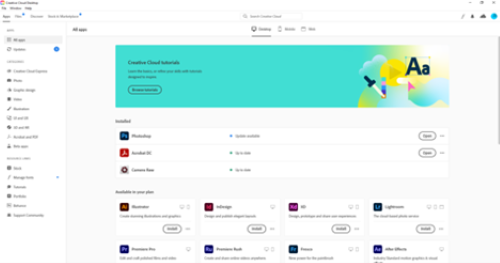
To install any of the Adobe Products, start by finding Adobe Creative Cloud in your Start Menu. Launch the application and login following the instructions above.
Once signed in, you can select from any of the applications that are listed. You may also update installed applications as well.
Installing on a personal device
RIT gives you 2 licenses to use for adobe. This means you can install creative on 2 devices. It can be a personal device if you choose. follow the same steps above to sign in to your account.
You can download Adobe Creative Cloud at https://helpx.adobe.com/download-install.html.
Signatures
See https://help.rit.edu/sp?id=kb_article&sysparm_article=KB0034814 on how to add a digital signature to Adobe Acrobat.
See https://help.rit.edu/sp?id=sc_cat_item&table=sc_cat_item&sys_id=3e5efe841b2868100ba4a7562a4bcb6e if you are looking for access to Adobe Sign.
Setting Acrobat to be the default app for PDFs
By default Microsoft Edge is typically set as your default PDF application. When you have Adobe Acrobat DC installed, you may want to change this.
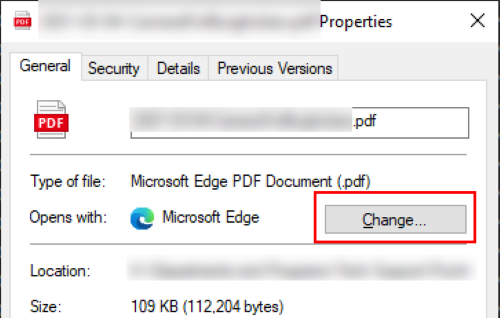
Locate a PDF on your computer and right click on it to select Properties. This will open a new window. Click Change.
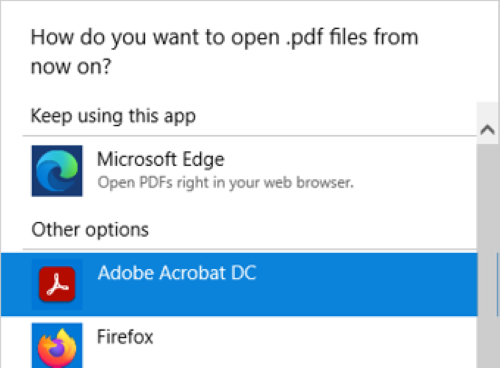
Select Adobe Acrobat DC from the list and click OK.
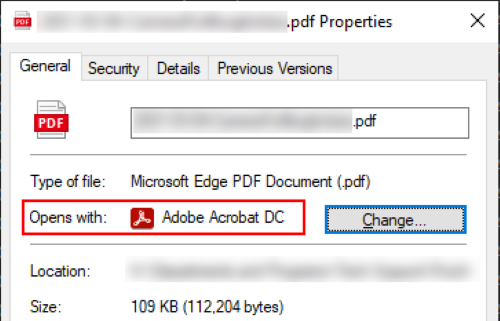
The Opens with should now say Adobe Acrobat DC. Click OK and PDFs should now open in Adobe instead of Edge.
Known Issues
Contacting digicert for OCSP error
If you are receiving the following error when opening Adobe products, you can fix the issue by turning off the certificate verification. Here’s how:
- From Adobe Acrobat, Go into Preferences > Signatures > Verification
- Click the More button
- Uncheck “Verify signatures when document is opened” (top check box)
- Uncheck “Require certificate revocation checking…” (middle check box)
- Click OK
This should resolve the issue.