
Overview
Slack is a collaboration tool that can be used for one-to-one or one-to-many instant messaging.
Saunders Workspaces
RIT-Saunders
The RIT-Saunders Workspace is restricted to Saunders faculty, staff, adjuncts, and student employees.
To join, go to https://rit-saunders.slack.com/ and sign in using your RIT account.
Student employees will need to login using the student accounts, not their employee accounts.
RIT-Saunders-Honors
The RIT-Saunders-Honors Workspace is restricted to Saunders Honors students.
To join, go to https://rit-saunders-honors.slack.com/ and sign in using your RIT account.
RIT-Saunders-Projects
The RIT-Saunders-Projects Workspace is operated by Saunders to allow for collaboration with those that are not employees of the Saunders College.
To join, go to https://rit-saunders-projects.slack.com/ and sign in using your RIT account.
See https://slack.com/help/articles/201402297-Create-a-channel for instructions on how to create a channel in this Workspace for you and your project team to use. It is strongly recommended that you use Private channels and not Public channels.
RIT-EMBA
The RIT-EMBA Workspace is restricted to EMBA staff and students.
To join, go to https://rit-emba.slack.com/ and sign in using your RIT account.
RIT Workspaces
RIT-Community
The RIT-Community Workspace is open to all of RIT.
To join, go to https://rit-community.slack.com/ and sign in using your RIT account.
Slack for Courses
See https://help.rit.edu/sp?id=kb_article&sysparm_article=KB0042857 for information on how to request a Slack workspace for your course.
Using the Slack App
For Saunders managed computers, see Portal Manager to install the Slack App.
For your personal devices, see the following:
- Windows: https://slack.com/downloads/windows
- macOS: https://slack.com/downloads/mac
- Android: https://slack.com/help/articles/207691318-Download-Slack-for-Android
- iOS: https://slack.com/help/articles/208401947-Download-Slack-for-iOS
Once installed, go to your workspace (see links above) and click on Sign in with RIT if prompted.
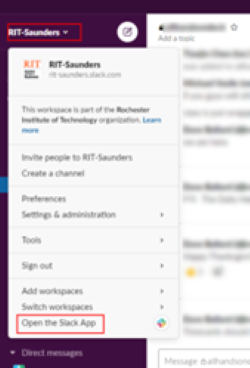
Once signed in, click on Open the Slack App under the RIT-***** menu:
Slack Documentation
As Slack is adding new features all the time, we recommend you review https://get.slack.help/ for help.