
Overview
Zoom is a video conferencing tool that is available for RIT faculty, staff, adjuncts, and students.
Setting up your Zoom Account
Setting your account is easy. Simply go to https://rit.zoom.us/ and click on Sign In. Please do not go to the main Zoom website to sign in. You must go to https://rit.zoom.us/.
You will then be prompted for your RIT username and password. Enter those as you normally would. If you have already signed into an RIT website, you may not be prompted as it uses the same authentication tools for all other RIT services.
Once signed in, your account will automatically be created and set to a Licensed account if you are eligible (faculty, staff, students, adjuncts).
Signing in via the web
To sign into your Zoom account, go to https://rit.zoom.us/ and click on Sign In.
Signing into the Zoom Client
If you are using your Saunders computer, you can install the Zoom client by using Portal Manager. If you are using your own personal computer, go to https://rit.zoom.us/download/ to download the client.
Once the client is installed, launch it to sign in.
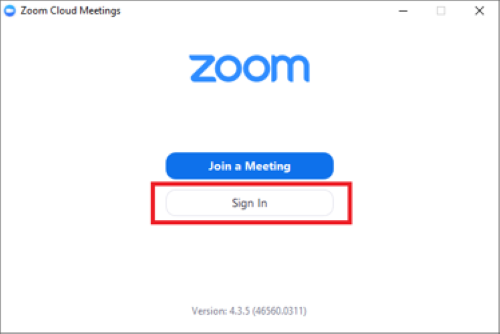
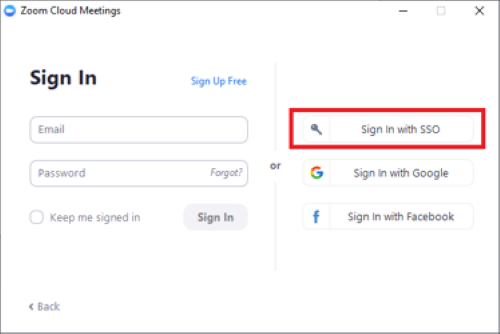
Be sure to select Sign In with SSO on the right side of the window.
Enter in rit and then click Continue.
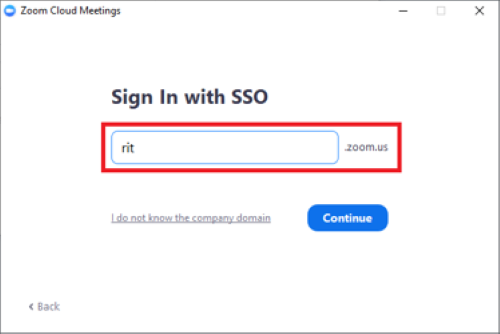
Your browser will open and redirect you to the RIT login page. From there you can sign in and select the option to Open Zoom when the notice appears. It will then open the client signed in with your RIT Account.
Securing your Zoom Meetings
To avoid Zoom Bombing, we strongly recommend you follow these steps to secure your Zoom Meetings.
Start by going to https://rit.zoom.us/profile/setting and sign in.
Turn on the following settings:
- Require a password when scheduling new meetings
- Require a password for instant meetings
- Require a password for Personal Meeting ID (PMI)
- All meetings using PMI
- Only authenticated users can join meetings
- Only authenticated users can join meetings from Web client
Additional Support From RIT
- Installing the Zoom Client
- Logging into the Zoom Client
- Joining a Meeting
- Scheduling a Meeting
- Scheduling a Meeting in Outlook
- ILI Webinars
- Zoom – Using Google Drive to Store Recordings
- Captioning and ASL Interpreting in Zoom
From Zoom
- Automatic Transcriptions
- Breakout Rooms
- Cloud Based Recordings
- Polls
- Scheduling Assistants
- Scheduling Meetings
- Schedule Recurring Meetings
- Spotlight Videos (helpful for interpreters)
- Tutorials
- Viewing Closed Captioning During Meeting
- Whiteboard Feature
- On pen enabled PCs, Microsoft Whiteboard has more features.
- Zoom 101: In Meeting Controls (Basic)