
Overview
RDP (Remote Desktop Protocol) and VPN (Virtual Private Network) are two resources available for us to use when accessing RIT resources from off campus. There are times when we need one or the other. It all depends on what you want to do.
RDP allows a user to remotely control another computer from the device they are currently using. Think of it this way.
When you have a desktop computer in the office, your set up will look something like this:
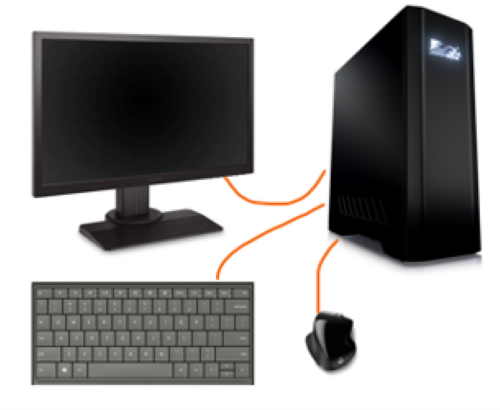
Your computer has a keyboard, mouse, and monitor plugged directly into it.
Now let’s say you are somewhere else on a laptop, but you want to use your computer that’s back in your office instead of the laptop. This is where RDP comes in.
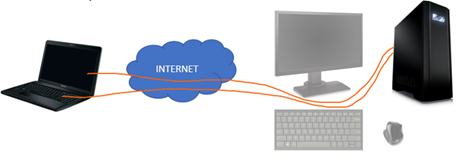
You can use your laptop to connect its keyboard, monitor, and mouse to the desktop back in your office. Once connected, what you see on your screen is now the image from your desktop.
By default, RPD connects in full screen mode. So along the top you will see a navigation bar:

You can use this bar to minimize the remote window and see your laptop’s screen instead of the remote screen.
If you click the X to close the remote screen, it simply disconnects your session and it remains running on the desktop in your office. It’s no different from turning your computer’s monitor off. You are still logged in and your applications are open.
Full Screen vs Windows
It is possible to change the Remote Desktop settings so that it uses a window instead of a full screen. When you launch the Remote Desktop software, click Show Options in the lower left and then Display. From there, you can select the window size.
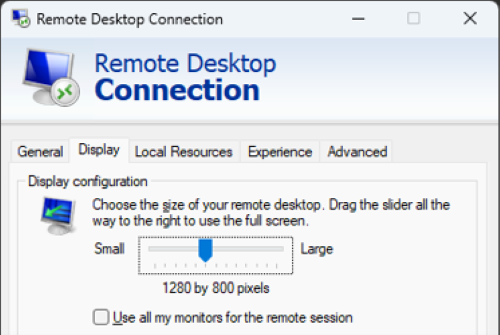
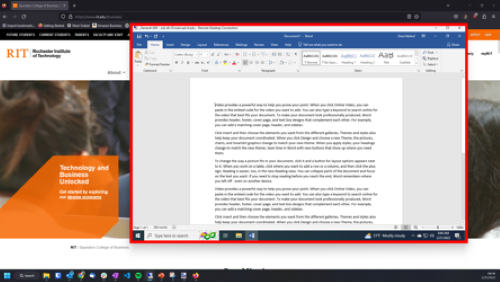
When you use this method, you will see the remote screen in a window that easy to move around allowing you to use both computers at the same time.
In the image below, you can see outline in red is the remote computer. Behind it is the local computer (laptop) that I’m physically using.
Things to be careful about
Shutting down / restarting
When you select shutdown or restart, be mindful of which computer you are clicking the button on. If you are using the Remote Desktop connection and you click shut down, this will turn off the remote computer. You’ll then need someone to turn the computer back on for you to connect to it.
We advise not shutting down your remote computer. If unsure, simply select reboot. The remote computer will back online after the reboot if you did select the wrong computer.
Why can’t I connect?
If you cannot connect to your remote computer, there may be a few reasons.
Is the computer on?
In order to remotely connect to your office computer, it must be on. While you are remote, you’ll need to ask a coworker or Tech Support for assistance on this one.
Off campus?
If you are off campus, you need to configure the Remote Desktop client to use the RIT Gateway or use VPN. The RDP service is blocked from off campus to help protect our computers.
Using the RIT Gateway is the easiest way and doesn’t require you to install and configured the RIT VPN Client. See https://help.rit.edu/sp?id=kb_article_view&sysparm_article=KB0034591 for instructions on how to manually configure the client or go to Remote Desktop to download the preconfigured settings.
Username/Password
When you connect to the remote system, especially from a personal device, you may need to add main\ in front of your username: main\abcbbu
VPN
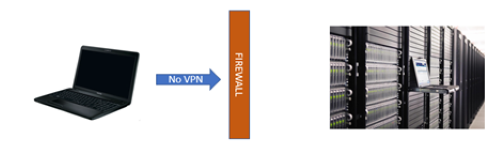
When you are off campus, some services might be blocked by RIT’s firewall preventing you from accessing certain resources. This more of the case with personal devices than with your Saunders issued laptop. The Saunders issued laptops have settings in them that allow you to bypass the firewalls for some services. These bypasses cannot be configured on non-RIT equipment.
Without VPN
With VPN
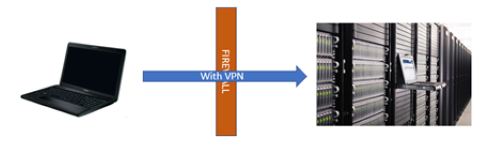
To connect to RIT via VPN, see RIT VPN Client for instructions. Additional instructions may be found at https://help.rit.edu/sp?id=kb_article_view&sysparm_article=KB0034448