
Overview / Restrictions
Saunders students or those students enrolled in a Saunders course can print to the printers just outside of LOW-3135 using a lab computer or their own personal device.
Each student gets up to 500 pages per semester. There is no additional print available beyond the 500 pages.
Printing from the lab
- Print your document by selecting the student-printers printer that should already be mapped to the lab printer.
- Go to the printers and following the Release job from mobile device instructions.
Release job from mobile device
- For security reasons, you must be connected to RIT’s wireless network to access.
- See https://help.rit.edu/sp?id=kb_article&sysparm_article=KB0040932 for instructions.
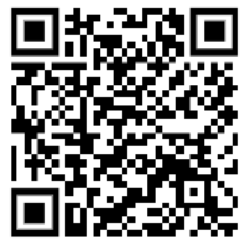
- Go to https://scb-sv-prt-1.main.ad.rit.edu:9192/mobile/release and login using your RIT username/password.
- Tap on the printer you wish to print.
- Check the jobs you want to release.
- Tap Release
Printing from a personal device
- For security reasons, you must be connected to RIT’s wireless network to access.
- See https://help.rit.edu/sp?id=kb_article&sysparm_article=KB0040932 for instructions.
- Convert what you want to print to a PDF. In most cases, you can print to PDF from the application you need to print from.
- Once you have the PDF, go to https://scb-sv-prt-1.main.ad.rit.edu:9192/ and login using your RIT username/password.
- Click on Web Print along the left-hand menu.
- Click Submit a Job.
- Specify the number of copies you need and click Upload Documents.
- Once uploaded, click Upload & Complete.
- If you want to release the job right away, click on Jobs Pending Release along the left-hand menu. Otherwise, you may go to the printers and use the Release job from mobile device above to print at a later time.
- Click on print next to the job you want to release.