
Overview
Prerequisites:
- Network and computer firewalls allowing Airplay access (may not work on campus, only at home)
- Zoom client for Windows 3.5.27094.0918 or later OR Zoom client for Mac 3.5.27094.0918 or later
- iPhone 4 or later; iPad; iPad mini, 4th generation or later
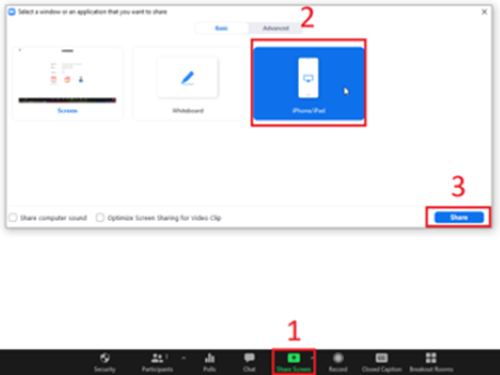
1) In the Zoom meeting on your PC, click Screen Share, iPhone/iPad, then share.
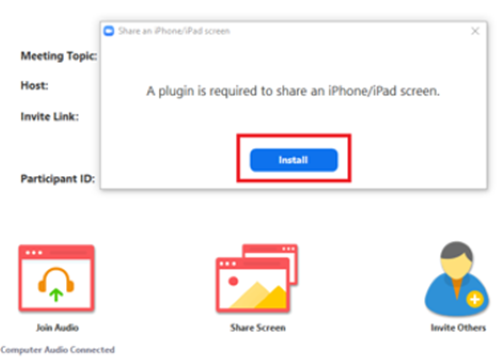
2) If you do not already have it, you will automatically be prompted to install the Zoom iOS Screen Mirroring plugin. Click Install (seen below).
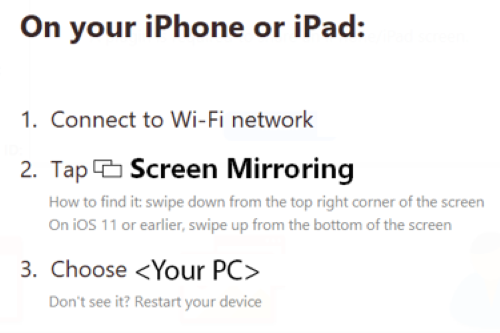
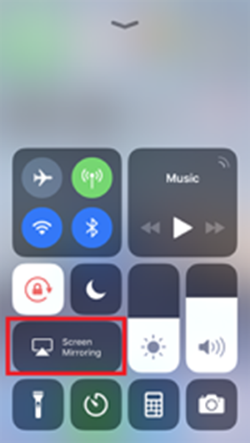
3) Follow the on screen instructions and select your PC under Screen Mirroring on your iPhone/iPad.
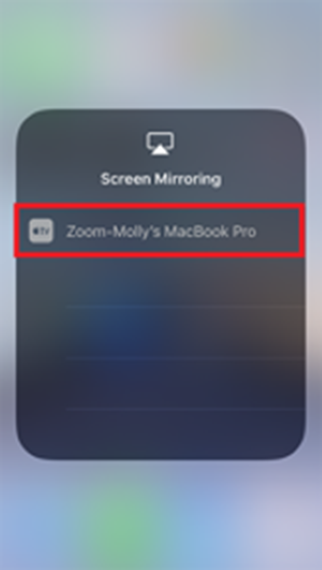
Source: Zoom Support
For more help, see the following Zoom Support thread: https://support.zoom.us/hc/en-us/articles/201379235-Sharing-your-screen-iOS-with-the-Zoom-desktop-client