
Overview
Because we have limited cloud based storage on Zoom, this document shows you how to use Google Drive to store your recordings.
Prerequisites
You must have a Pro Zoom account, the Zoom client installed, and Google Drive File Stream installed.
Change Zoom Client’s Local Recording Location
Open your Zoom client and click on the settings clog in the upper-right.
Select Recording in the Settings window.
Under Local Recording, click Change and select where on your Google Drive you want to store your recordings.
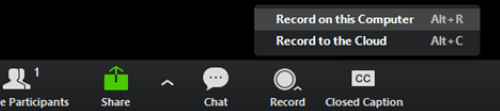
Once you have your meeting started, when you go to record, select Record on this Computer.
When the meeting has been completed, the recording files will be stored on your Google Drive.