Nav
Classrooms & Conference Rooms

LOW-1050

LOW-1215

LOW-3000 and LOW 3025

LOW-1135, LOW-3015 and LOW-3040

LOW-3135

LOW-3057

LOW-4050

Computer Labs

Computers and Laptops

Computer Audio – Selecting Speakers

Driver Updates

Laptop Stands

Lenovo X1 Yoga – Battery Reset

Lenovo X1 Yoga – Camera Shutter

Lenovo X1 Yoga – Docking Station

Lenovo X1 Yoga – Increase Battery Life

Lenovo X1 Yoga – Monitors Not Working

New Computer Setup

Power Settings on Laptop

RDP vs. VPN

Remote Desktop

RIT Wireless Network

Running Hardware Diagnostics

Windows Updates from Microsoft

Email and Calendar

Adding a shared Exchange mailbox

Automatic Replies (Vacation Message)

Creating A Meeting Invite

Email Signatures

Filter all Meeting Requests and Updates to another folder

Forwarding Email Headers

Junk Email & Spam

Mailing Lists

Saunders Activities Calendar

Sending email from another account

Setting up the Outlook app on Mobile Devices

Sharing and Opening a Shared Calendar

Equipment Reservations

Executive MBA Support

EMBA Slack

File Services

Google Drive File Stream

OneDrive

Help Articles

Capstone Servers

Events Management System

Getting Software

How to screen share an iOS device in a Desktop Zoom meeting

Improve the speed of your iPhone/iPad

LanSchool Teacher Console Issues

PDF Printing Is Very Slow

Reset Outlook Search Index

Saunders Q&A Wednesdays

Schedule a Zoom Meeting on Behalf of Another

Inside.SCB & Sedona

Policies and Forms

PaF – Access to Offices

PaF – Data Store Policy

Printing and Scanning

Saunders Student Printing

Service Requests

Software and Databases
Adobe Software

How to Fix Adobe Serial Number Problem

Setting Up Certificate-Based Signatures in Adobe Acrobat

AI Tools

ATLAS.ti

Avaya Cloud Office Phone System

Handset Instructions

Azure Dev Tools for Teaching

Bizagi Modeler

Bloomberg

CrashPlan

Dedoose

EMS Desktop Client

FASB

Google Apps at RIT

Google Jamboard

Home Use

HubSpot

Ivanti

Force a Security Scan

Force an Inventory Scan

Portal Manager

KeePass

Leximancer

Microsoft Office

Microsoft OneNote

Microsoft Whiteboard

Overleaf

Password Managers

Qualtrics Surveys

RIT VPN Client

SAP

Slack

Spirion

SPSS

Stata

Tableau

Web Browsers

Browser Extensions

Browser Sign-In

Changing the Default Search Engine

Clearing the Browser Cache and Cookies

Disable YouTube Auto Play

Edge URL Copy and Paste

Recommended Browsers

Windows 10

Weathers & News Taskbar

Windows 10 – Default Applications

Windows 11

Windows 11 – Cannot Delete Public Desktop Icons

Windows 11 – Default Applications

Windows 11 – Start Menu & Taskbar

Windows 11 – Time Zone is Wrong

WRDS

Zoom

Zoom – Automatic Transcriptions

Zoom – Closed Captioning

Zoom – Remote Support

Zoom – Using Google Drive to Store Recordings

Zoom – Share Recordings

How-to articles

Filter all Meeting Requests and Updates to another folder

Microsoft Outlook

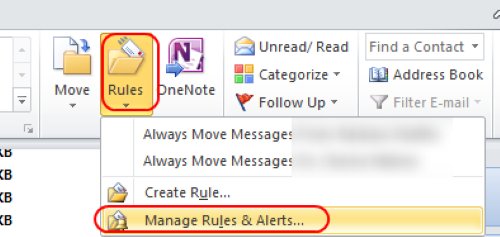
Start by opening Outlook.  Click on Rules and then Manage Rules & Alerts on the Home ribbon.
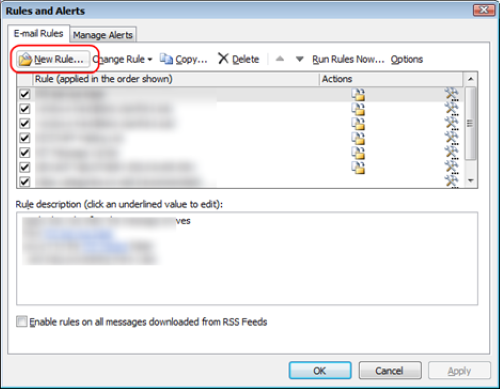
Click on New Rule
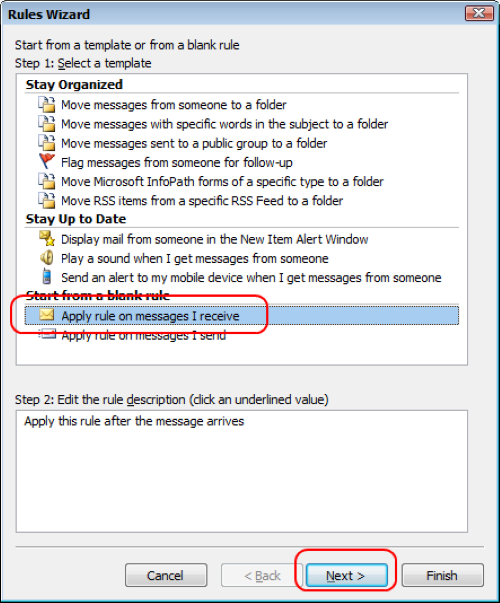
Click on Apply rule on messages I receive and then click Next.
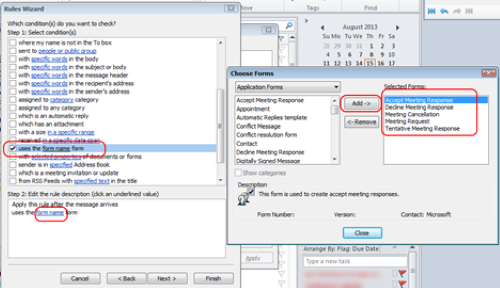
Check uses the form name form, then click on the underlined words form name.
Select Application Forms from the drop down on the left-hand side.
Find Accept Meeting Response, Decline Meeting Response, Meeting Cancellation, Meeting Request, and Tentative Meeting Response.  Use the Add button to move those forms to the Selected Forms list on the right-hand side.  Once done, click Close then Next.
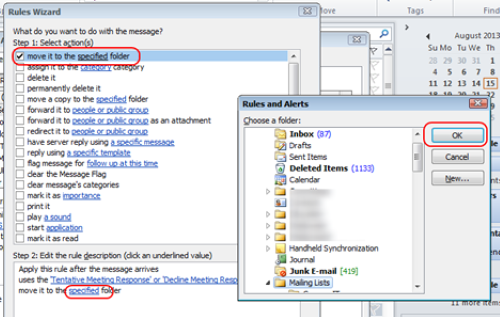
Check move it to the specified folder, click on specified and then select the location of where you want these types of messages to go to.  Click OK and then Next.
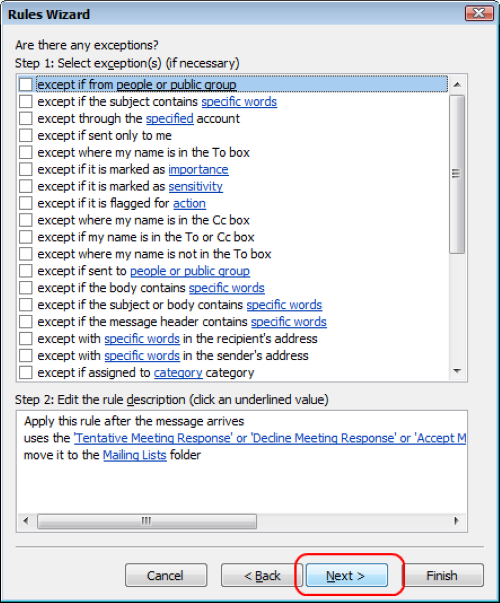
Enter any exceptions if needed; otherwise, click Next.
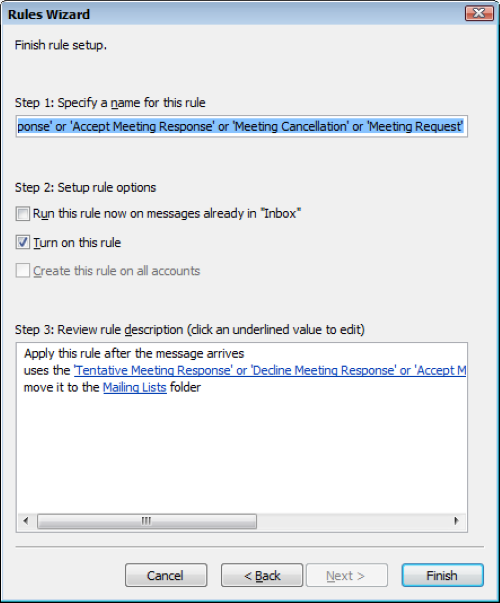
Set a name for the rule and click Finish.