
Overview
Saunders Technical Support provides file services to our faculty and staff in the form of the H: and P: drive. Both of these drives are backed up on a routine basis and are stored on a secure server.
Off Campus Issues
If are using a computer that is not managed by Saunders, then you’ll need to use the RIT VPN Client to connect to our file servers. All Saunders managed computers are configured so that VPN is not required from off campus.
H: Drive
The H: drive is used for groups that wish to share files with other individuals or groups. A hierarchy has been created for various divisions and committees to share files as well as groups of people to setup project folders. Folders on the H: drive are restricted to certain individuals. If you would like a new folder created on the H: drive or require access to an existing folder, please make contact with Saunders Technical Support and we will work with the owner of the folder to fulfill your request.
The H: drive is located at \\main.ad.rit.edu\Shares\SCB\SCB_Shared
P: Drive
The P: drive is used by individuals to save personal files in a safe and secure location. The P: Drive should be used instead of my Documents. P: drives are not shared with multiple users. This is what the H: drive is for. Each faculty and staff member is encouraged to store any important files on the P: drive. Because Saunders Technical Support does not backup individual workstations, by storing files on the P: drive, users do not need to worry should their computer fail.
The P: drive is located at \\main.ad.rit.edu\Shares\SCB\SCB_Personal\<your username>
Connecting to H: and P: Drives
File services like the H: and P: drive are automatic for Saunders managed computers. For personal computers and non-Saunders managed computers, you can map the H: and P: drive using the following steps.
Windows 11 Instructions
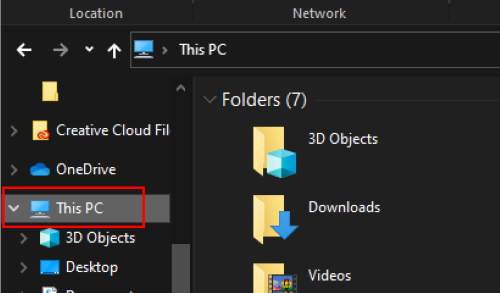
On Windows, open File Explorer and right-click on This PC along the left-hand menu
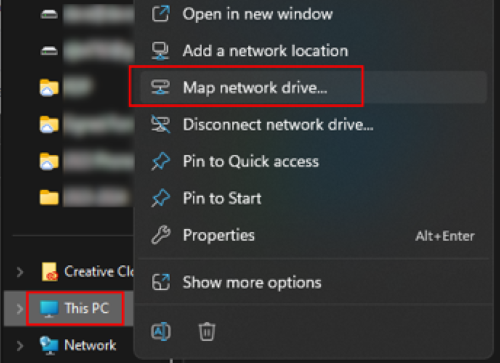
Click on Map network drive on the popup menu.
From the drop down, select H: for the H: drive.
Enter \\main.ad.rit.edu\Shares\SCB\SCB_Shared for the folder.
If you are using a non-RIT laptop make sure to check the Connect using different credentials. When prompted for your username/password, enter MAIN\username instead of just your username.
Click Finish
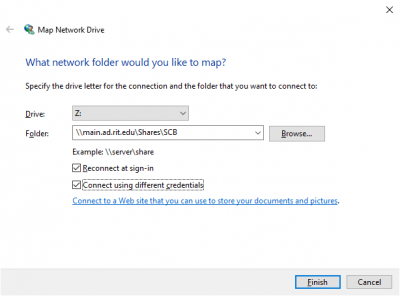
From the drop down, select P: for the P: drive.
Enter \\main.ad.rit.edu\Shares\SCB\SCB_Personal\username for the folder.
Replace username with your RIT username.
If you are using a non-RIT computer, be sure to check the “Connect using different credentials.” When prompted for your username/password, enter MAIN\username instead of just your username, otherwise leave it unchecked.
Click Finish
All Other Shares
While file services like the H: and P: drive are automatic for Saunders managed computers, there are several other file services available that some of our users require.
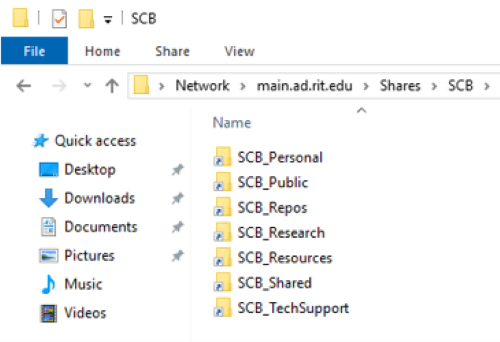
Use the instructions above to connect to any of the SCB shares available using a different drive letter. For Folder, enter \\main.ad.rit.edu\Shares\SCB and click Browse to locate the folder you wish to map.
MacOS / OS X
From Finder, click Connect to Server under the Go menu.
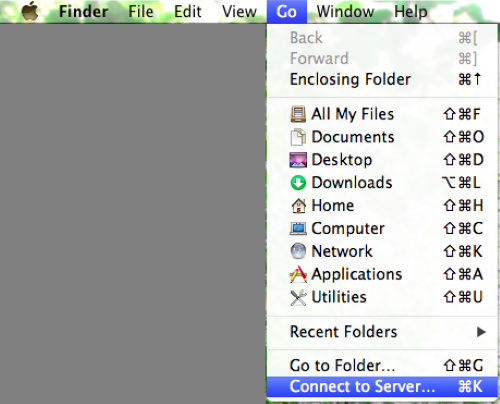
Enter smb://main.ad.rit.edu/Shares/SCB/
Click Connect.
When prompted for your username and password, select Registered User.
For Name, enter your RIT Computer Account username preceded by main\. Example: main\abcbbu
For Password, enter your RIT Computer Account password. We recommend you do not save the password in your keychain.
Click Connect.
How to Map H: and P: Drives on Saunders Managed Computer
Navigate to C:\SCB\Support and double-click on the H and P file. This will run a script to automatically connect you to the H: and P: drives.
How to:
Open File Explorer located in your Start Menu or on the Taskbar.

Click on This PC along the left hand side
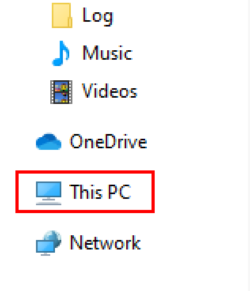
Double click on Local Disk (C:)
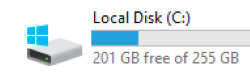
Open the SCB and then Support folder.
Double click on H and P
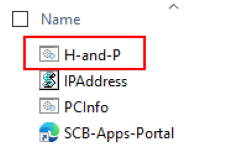
A script will run with two sets of commands. First, it will try to remove the old H: and P: drive connections if they exist. If not, you will see errors that the network connection could not be found. You can ignore these errors.
You may be asked if you are sure you want to disconnect the resource. You can see either Y or N to this question because in the next step it will try to reconnect both H: and P:
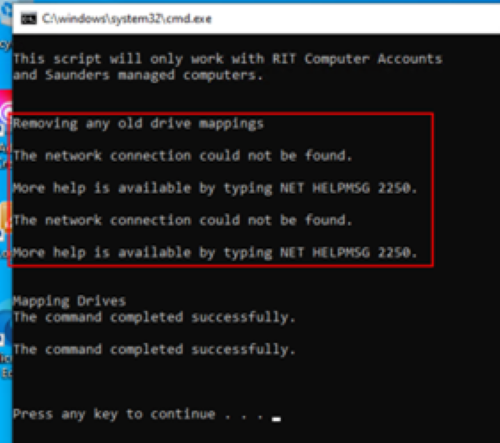
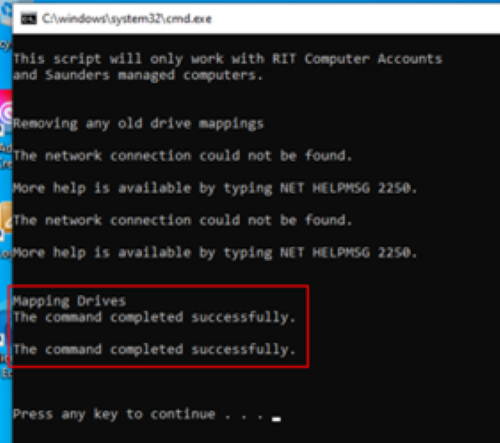
Once done disconnecting, the script will then try to map the drives. If this part is unsuccessful and you are off campus, connect to VPN and try again. If it still doesn’t work, contact Saunders Technical Support for assistance.
Google Drive through RIT
See Google Apps at RIT for information on how to setup your RIT account for use with Google Apps and then Google Drive File Stream on how to access your Google Drive files on your PC.
Microsoft OneDrive
See OneDrive for details.