
How to Sign in to your web browser to share data between your devices
Your browsing data, like your bookmarks, history, passwords, and other settings can be saved and synced to your account. That way, your data is available on any device where you sign into a web browser with that account. Any changes you make to your data on one device will sync to all other devices where you are signed in.
This is very useful if you get a new device; you can get back your bookmarks, history, passwords, and other settings simply by signing into the web browser again.
This is recommended, but not required
Google Chrome
We recommend using your personal Google Account and not an RIT account.
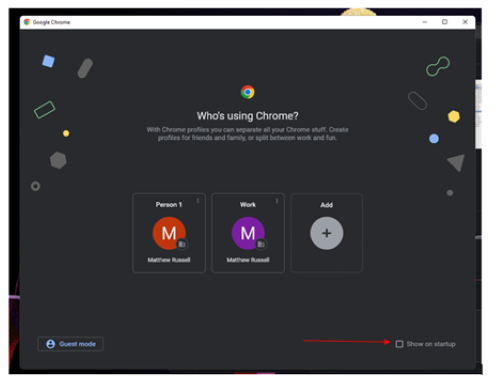
Google chrome now offers Profiles. Each profile is for each account that you have signed into Chrome. This can be disabled id you do not want the profile select prompt to launch every time you open chrome.
To disable Profile Selection:
1. Launch chrome. You want the shortcut with no profile associated with it.
2. Deselect the check box for “Show on startup”
To sign into a google account
- Open Chrome.
- In the top right, click the button with your name or the person icon.
- Click Sign in to Chrome.
- Sign in with your Google Account.
Turn On Sync Settings
- To customize your sync settings click your profile icon in the top right.
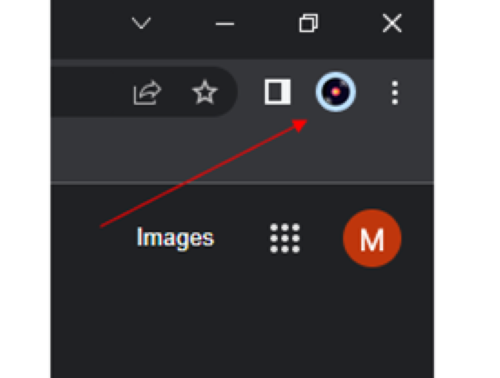
2. The Select the Sync option that appears:
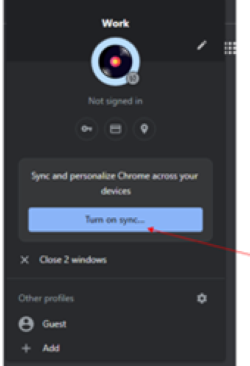
3. Enter your credentials and select “Yes, I’m in”
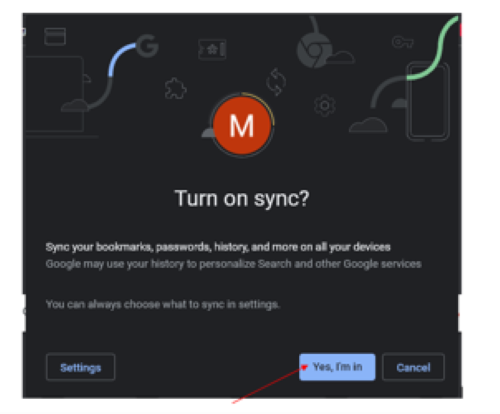
Sync is now Running.
Microsoft Edge
Windows 11
- Launch Edge
- Click the person icon in the top right.
- Select “Sign in to Sync Data”
- Enter your credentials.
- Sync is running.
Mozilla Firefox
- Launch Firefox.
- Click the three bars icon in the top right.
- Next to “Sign in to save and sync data” click Sign in. Continue even if you do not have an account. You will create one later.
- On the next page enter your email.
- If you do not have an account it will prompt you for a password and age.
- Click “Create Account”
- Enter your verification code
- You will get a message that says “This Firefox is connected”
- Once signed in you will notice your first name initial appear in the top right.
- You are now syncing data.