Microsoft Outlook
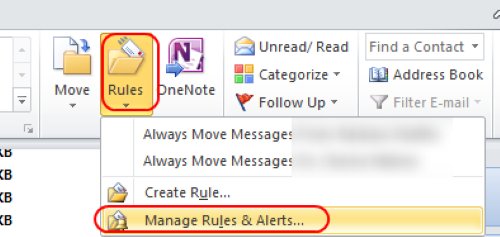
Start by opening Outlook. Click on Rules and then Manage Rules & Alerts on the Home ribbon.
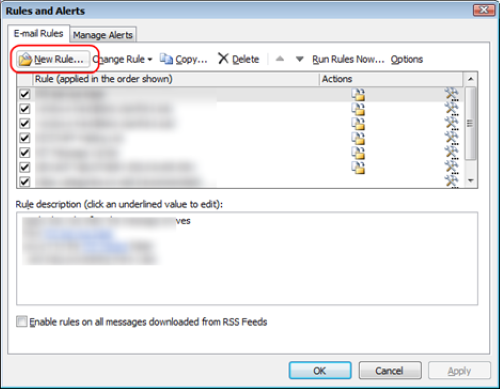
Click on New Rule
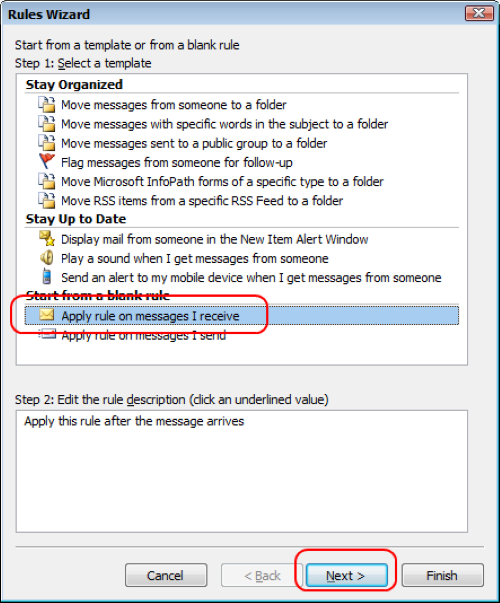
Click on Apply rule on messages I receive and then click Next.
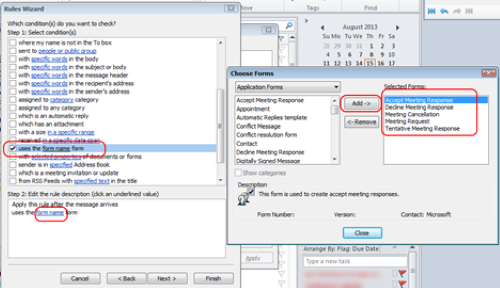
Check uses the form name form, then click on the underlined words form name.
Select Application Forms from the drop down on the left-hand side.
Find Accept Meeting Response, Decline Meeting Response, Meeting Cancellation, Meeting Request, and Tentative Meeting Response. Use the Add button to move those forms to the Selected Forms list on the right-hand side. Once done, click Close then Next.
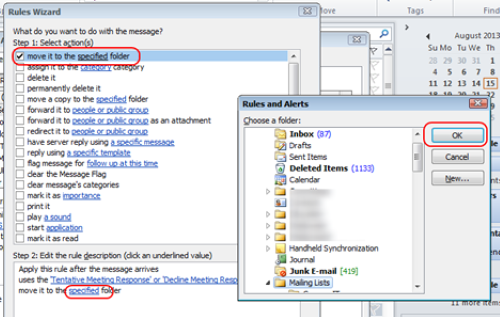
Check move it to the specified folder, click on specified and then select the location of where you want these types of messages to go to. Click OK and then Next.
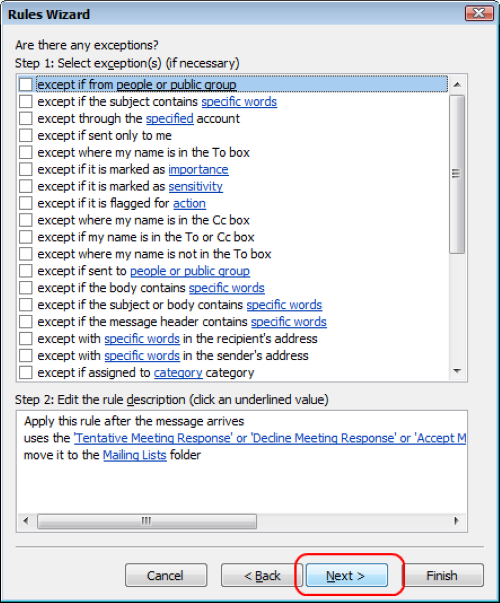
Enter any exceptions if needed; otherwise, click Next.
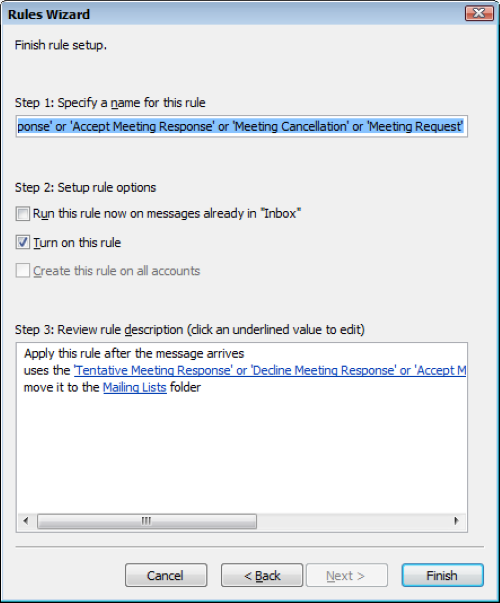
Set a name for the rule and click Finish.