
Setup Your RIT Google Account
Employee accounts do not have Google Apps turned on by default. Please see Google Apps at RIT for details on how to opt in to Google Apps at RIT and to initially setup Google Drive.
Student accounts do not need to make any changes.
Installing Google Drive File Stream
To install Google Drive File Stream on your Saunders computer, please use Portal Manager. To install Google Drive File Stream on a personal computer, see https://support.google.com/drive/answer/7329379.
Using Google Drive File Stream
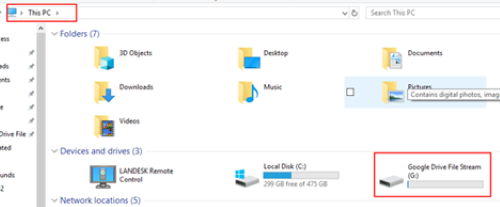
Once Google Drive File Stream is installed, you will see under This PC a new drive letter appear called Google Drive File Streams. This is where your Google Files will now be stored.
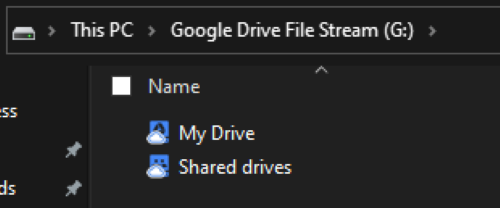
Once you open the drive, you will see My Drive and Shared drives. My Drive is where your individual files will be. Shared drives are those drives you setup for teams.
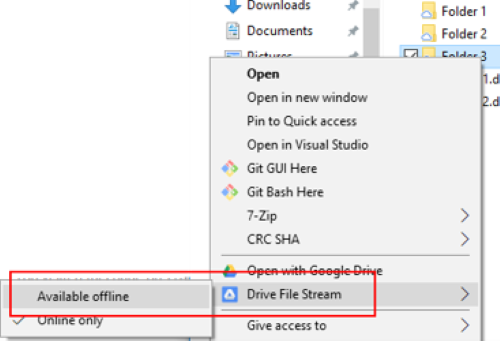
A major difference between Google Drive and Google Drive File Stream is that the files are not stored on your computer. This means that if you don’t have Internet connectivity, you may not be able to open your files. You can manually specify which files/folders you want to have available offline by right-clicking on any file/folder and clicking on Drive File Stream \ Available offline. This will sync the files to your computer.
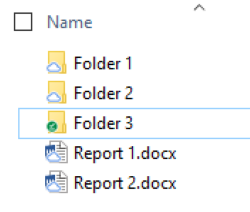
Once you have set this up, you will notice a difference in the icons on the files/folders. Clouds indicate the file/folder is only available online. Green checks indicate the file/folder is also available when offline.
Folder 3 Online Only
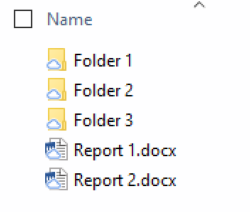
Folder 3 Available Offline
Multiple Google Accounts
It is possible to have multiple Google Drive accounts open at the same time. Here’s how to manage those settings.
Adding an Account
Start by opening the Google Drive preferences. To do so, click on the Google Drive icon in the system tray, then the settings cog in the upper right, and the Preferences.
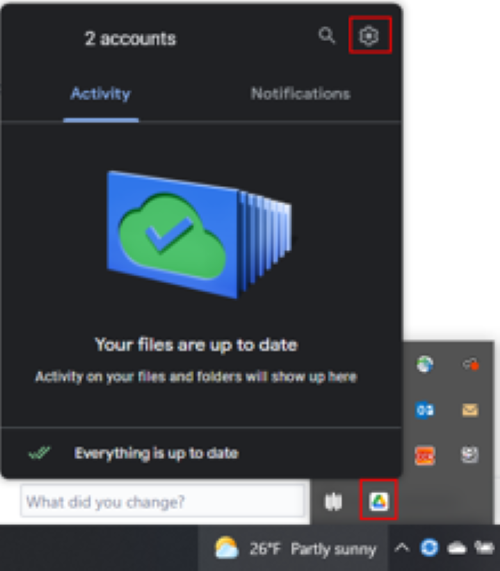
Click on your profile icon in the upper right and then select Add another account.
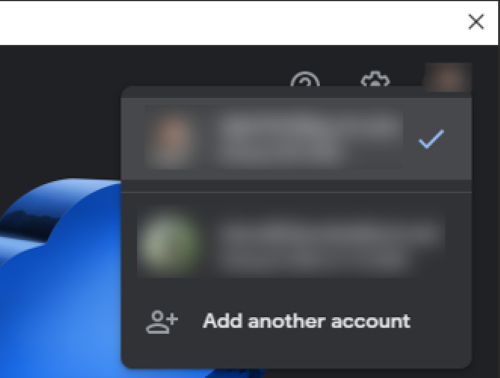
From here, you can add an additional account.
Changing Drive Letters
Google selects the next available drive letter, starting at G: for each account. Sometime, we want to modify what drive letter each account uses.
We recommend using G: for your RIT employee account and other drive letters for personal/student accounts.
Go to https://scb-sv-prt-3.main.ad.rit.edu:9192/ using your web browser and sign in using your RIT username and password.
Start by opening the Google Drive preferences. To do so, click on the Google Drive icon in the system tray, then the settings cog in the upper right, and the Preferences.
Click the settings cog on the Preferences window.
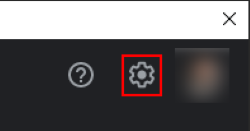
From here, you can scroll down through the accounts to specify which driver letter you want to use for which account.
Once done, click Save.